

 Source
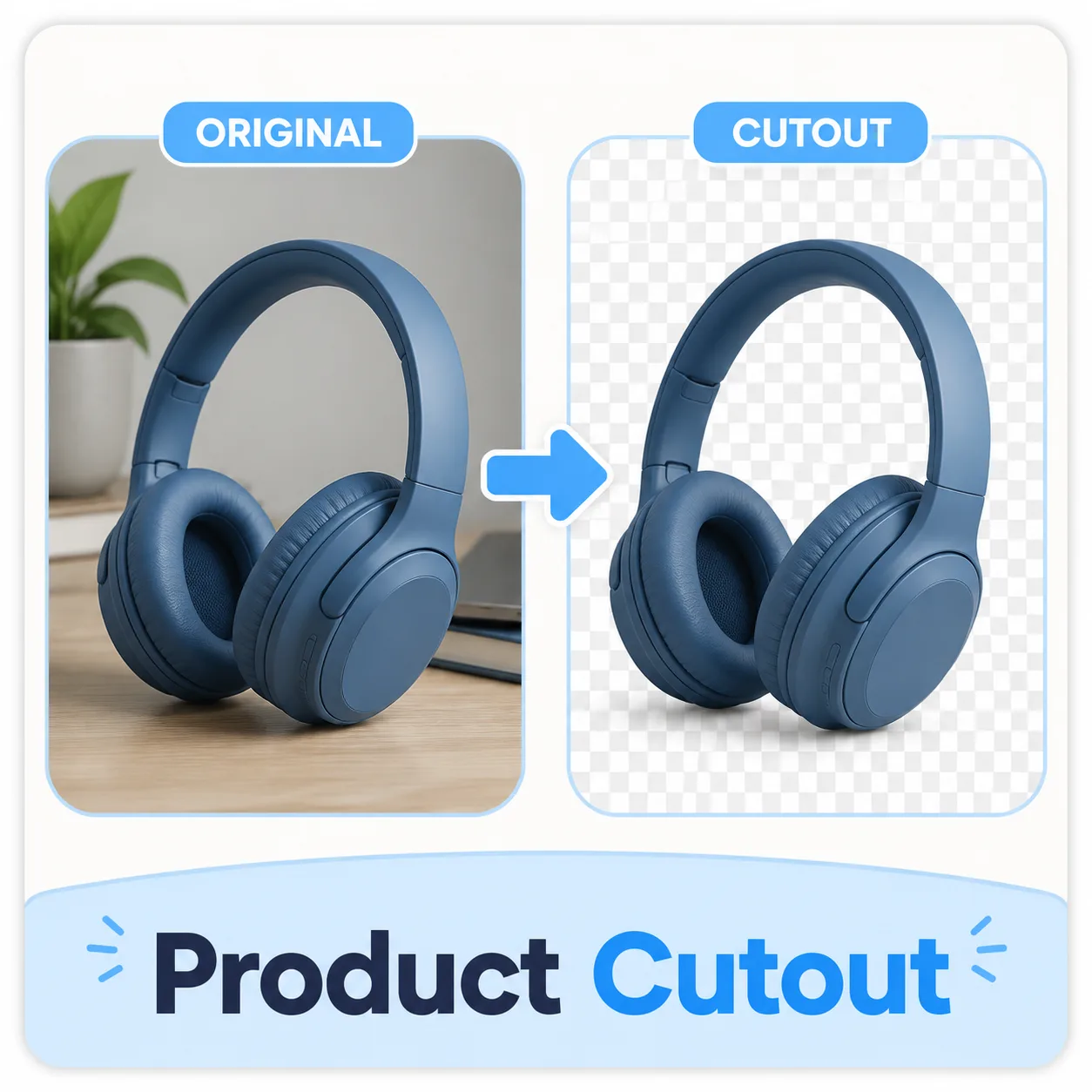 Result
Marketplace product
Turn a busy catalog photo into a transparent product asset.
Upload an image, click once, and get a clean transparent cutout. No background settings, no manual selections, no design software required.
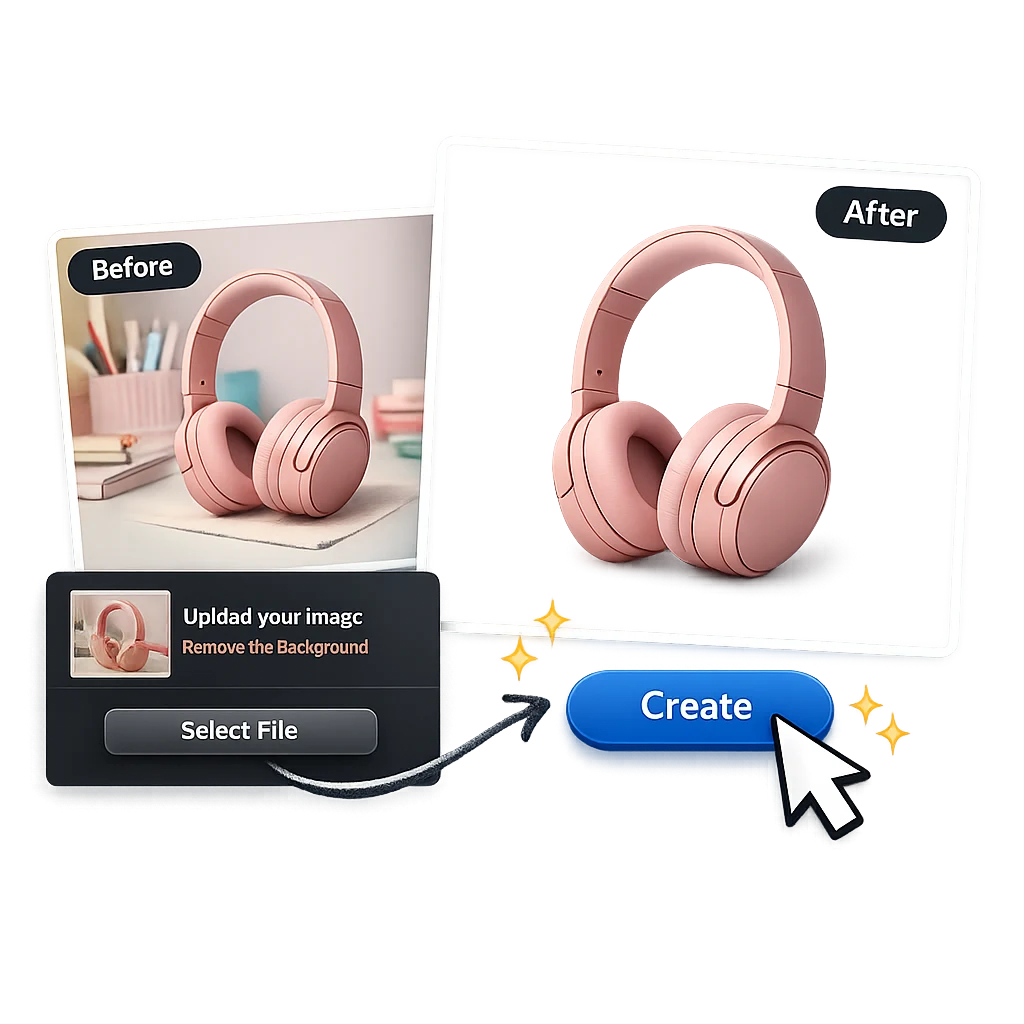
Product cutout
Cutout results
The remover is designed for fast asset prep. Upload once, remove the background, and move the clean subject into the next layout.
SourceResultTurn a busy catalog photo into a transparent product asset.
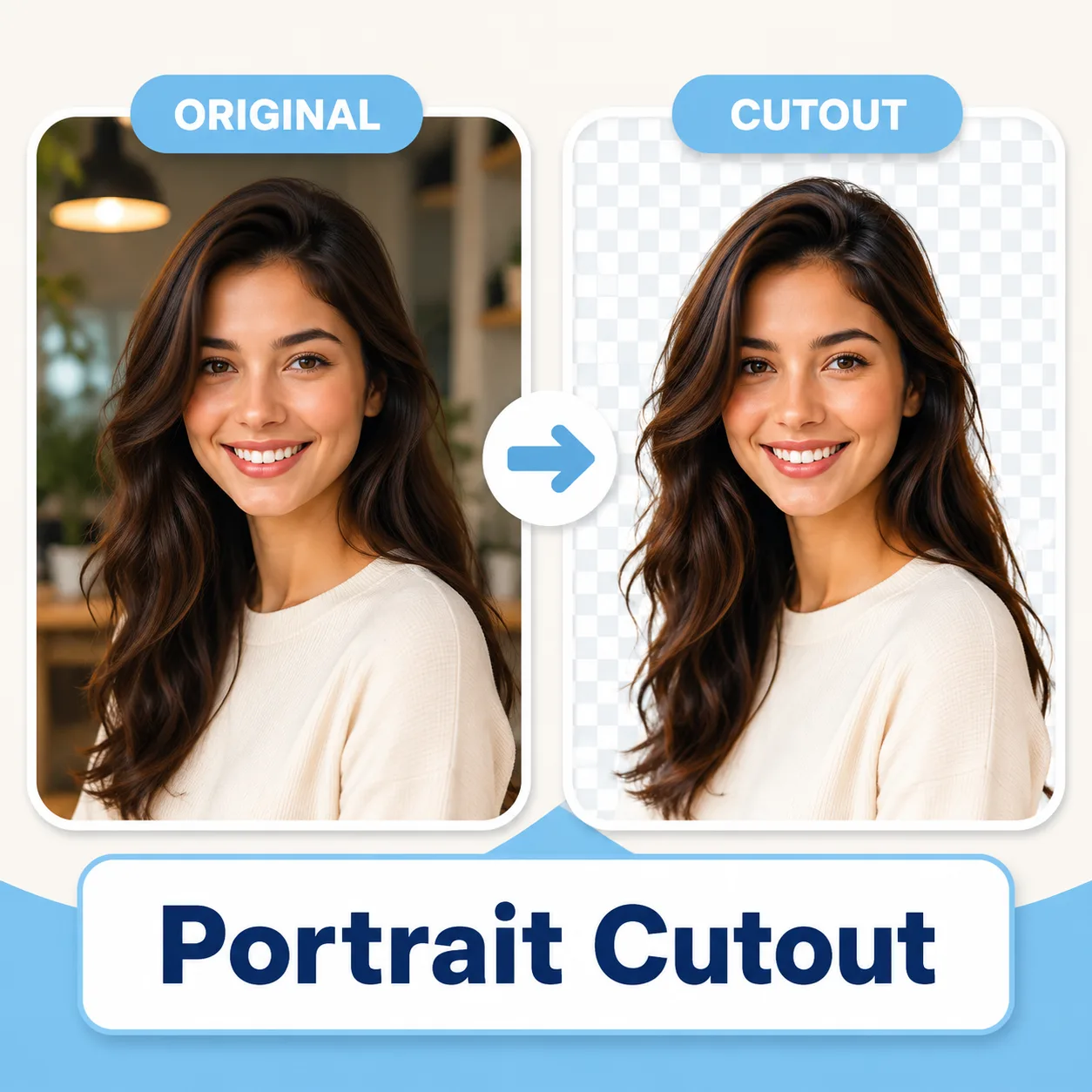 Cutout
Separate people from the scene for avatars and posters.
 Cutout
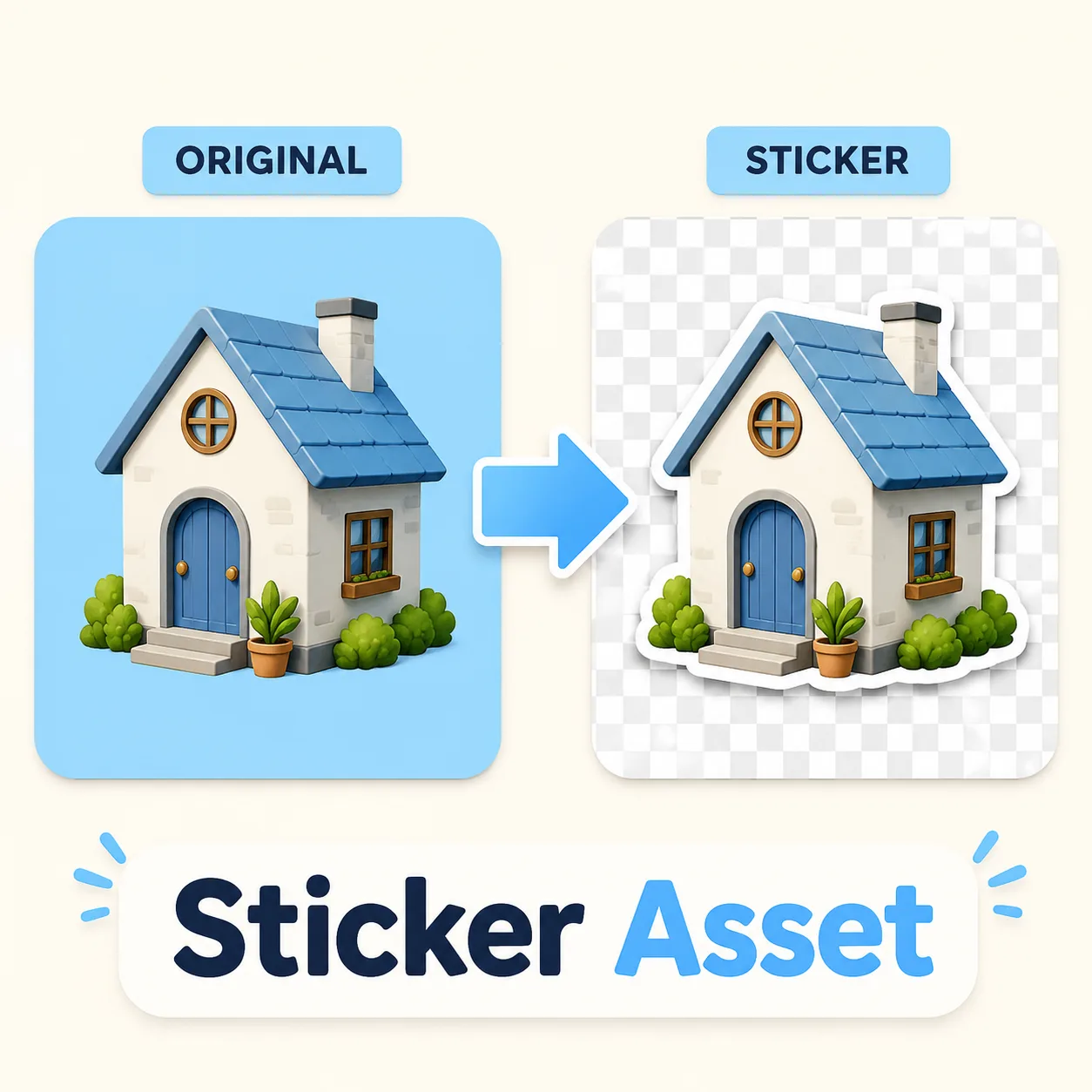
Create reusable object cutouts for sticker packs and layouts.
 Cutout
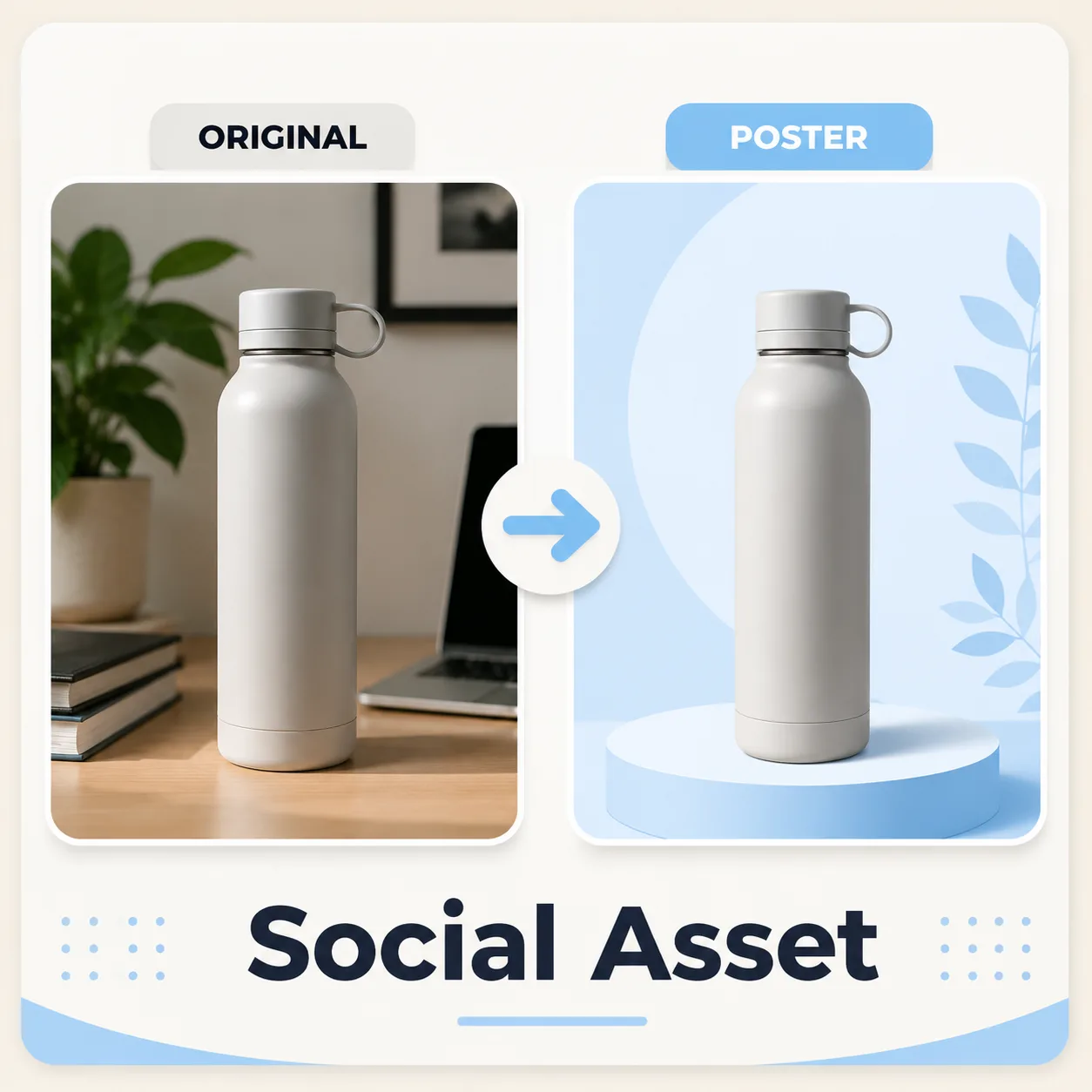
Drop a clean subject into a new social media canvas.
Before and after
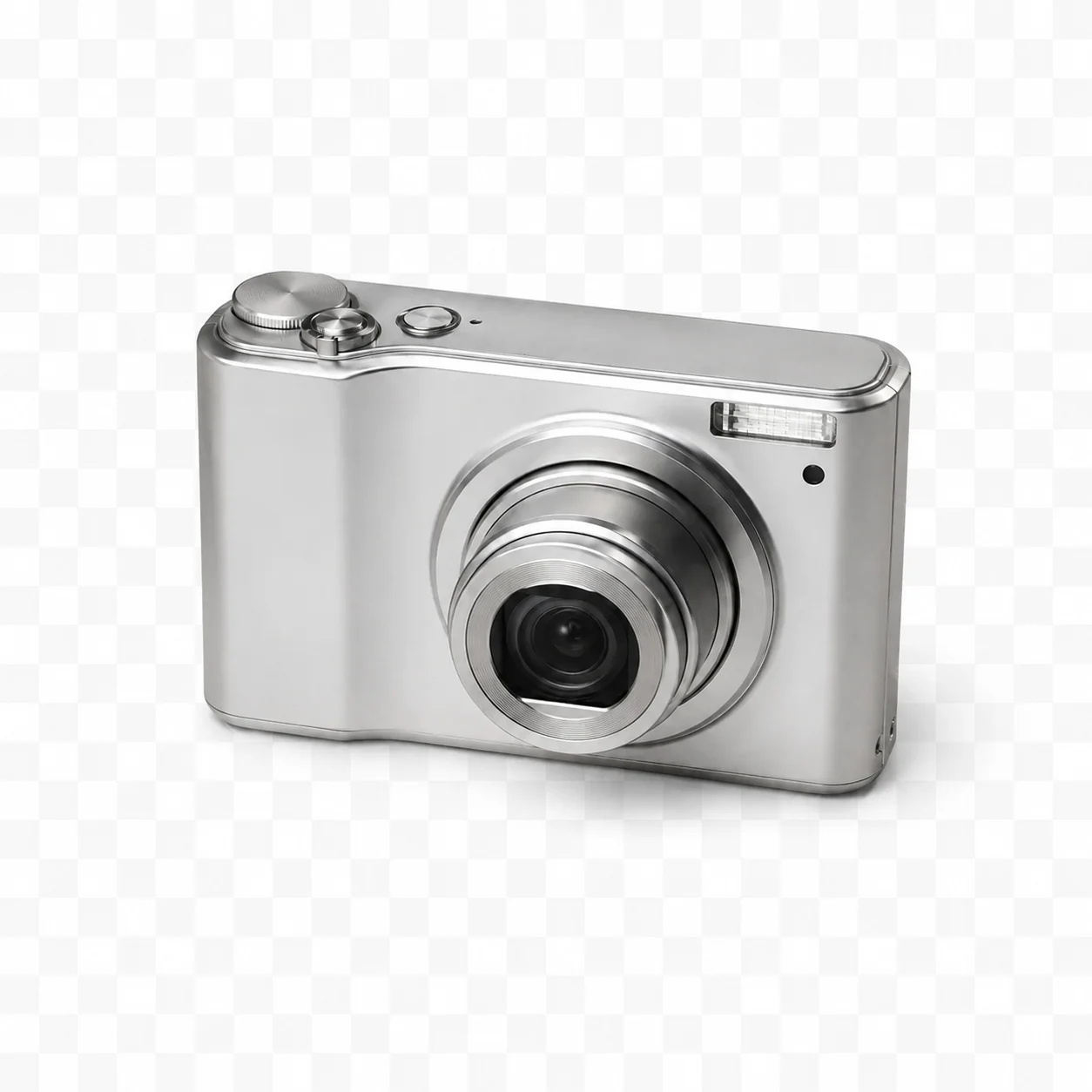
Users need to see subject isolation, not just a decorative result. These examples show product and portrait cutouts on transparent-style backgrounds.
OriginalCutout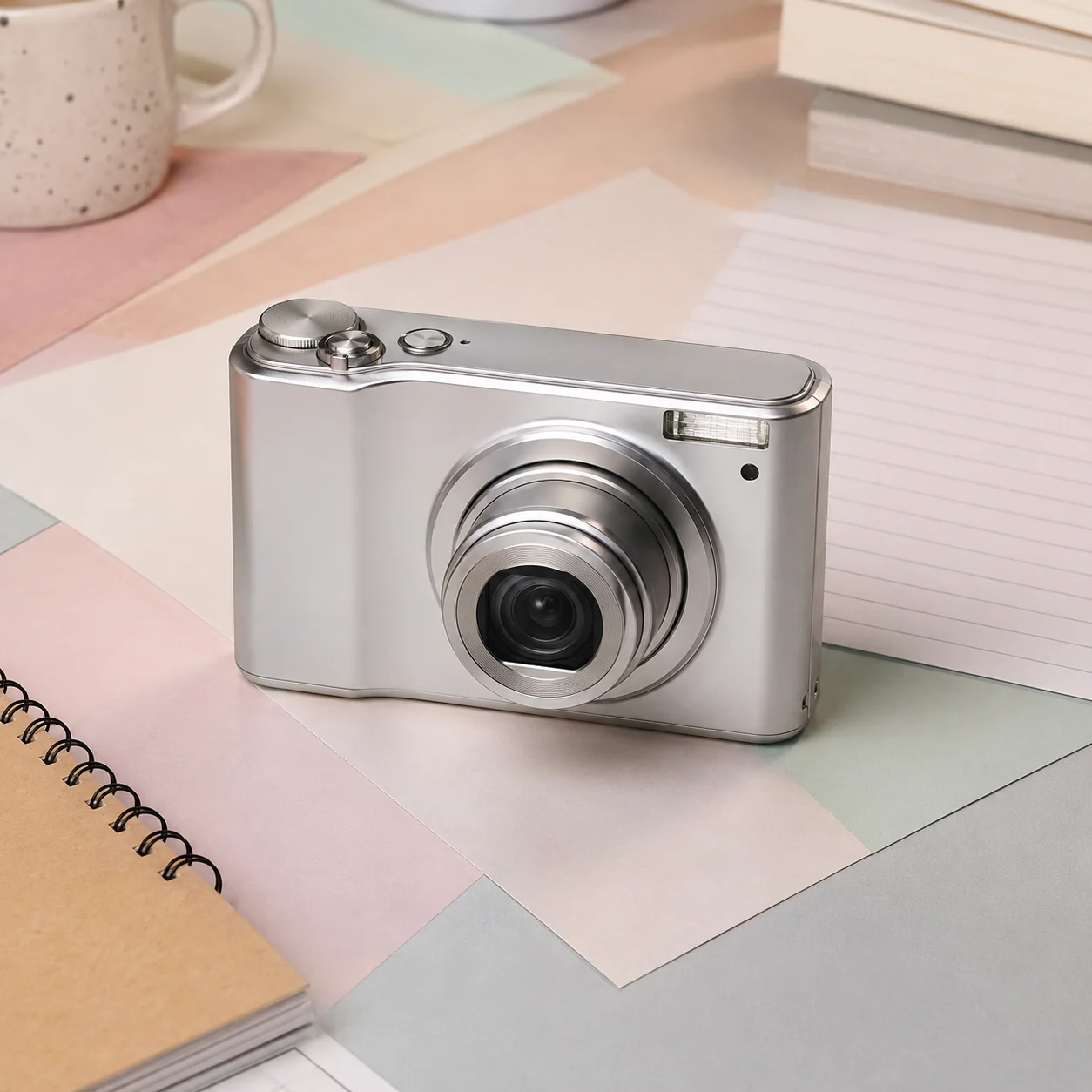 Original
 Cutout
 Original
 Cutout
Asset workflows
The tool is intentionally narrow: remove the background first, then use the transparent subject in the next design step.
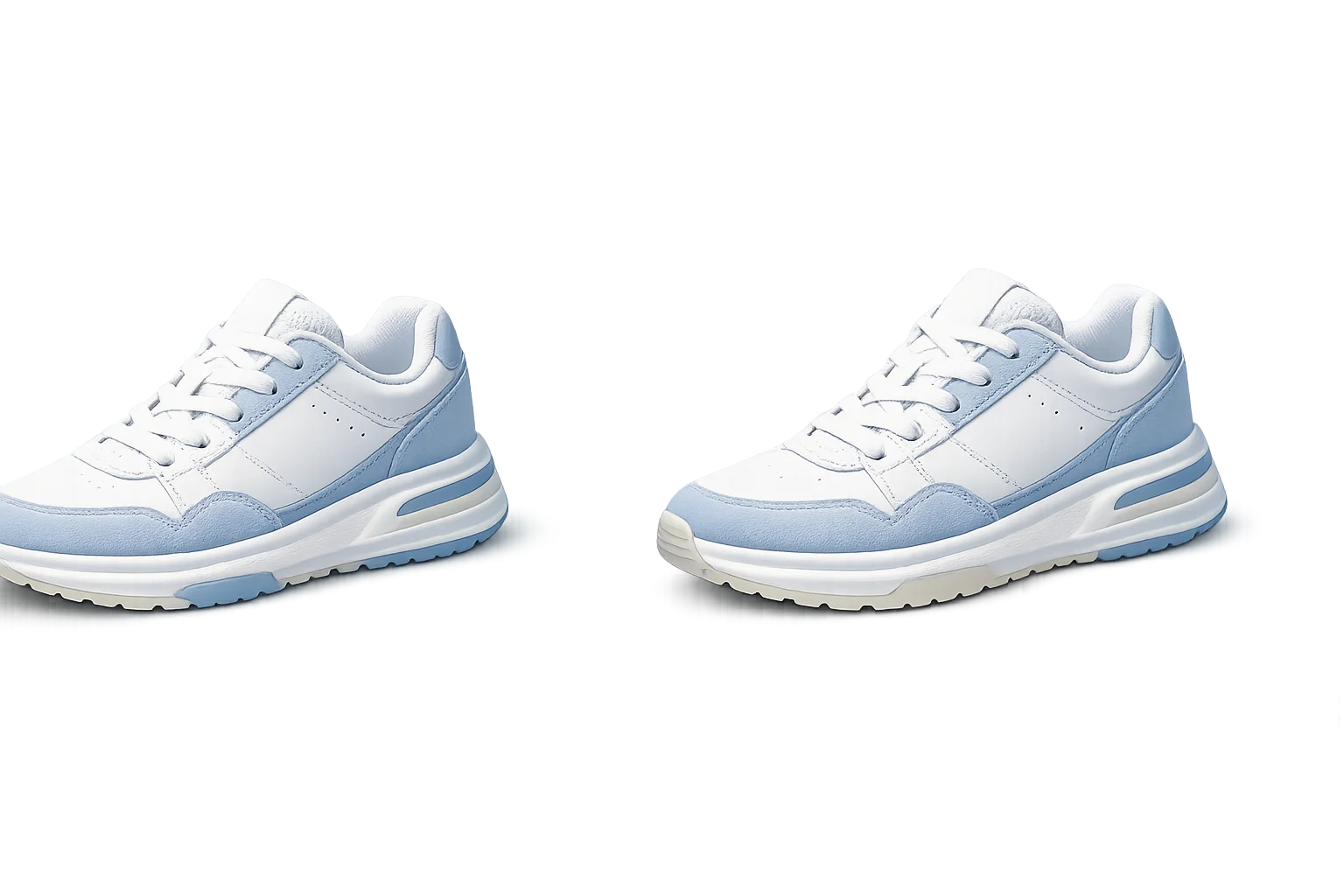
01 / cutout workflow
Separate products from busy source photos before placing them in listings or ads.
Start for free
02 / cutout workflow
Preview portraits where edge quality matters before exporting the transparent asset.
Start for free
03 / cutout workflow
Turn subjects into reusable sticker-like assets for social layouts and product pages.
Start for freeAfter generation
Transparent cutout is the default. Once the background is removed, you can place the subject on the surface your next workflow needs.
Default result for reusable product, portrait, sticker, and design assets.
Add a simple white canvas after removal when marketplaces require it.
Place the cutout into banners, landing pages, and lightweight social posts.
Use the cutout with colors, posters, gradients, or generated scenes.
Minimal flow
Upload a JPG, PNG, or WEBP image.
Click Remove Background once.
Download the transparent cutout.
Optional: place it on a new canvas.
It detects the main subject in an image, separates it from the background, and creates a clean cutout that can be placed on transparent, white, or custom backgrounds.
Yes. A transparent PNG-style output is the primary use case. It is useful for ecommerce product photos, profile images, sticker assets, and design compositions.
Portraits with visible contrast between subject and background work best. Hair, fur, glass, and motion blur can be harder, so always preview the edge before using the final asset.
Yes. Product cutouts are a strong use case. Use clean source photos when possible, avoid extreme shadows, and export transparent or white-background versions depending on the marketplace.
Choose transparent PNG for design assets, JPG with a white background for marketplaces, and WebP for lightweight web pages when transparency is supported by your workflow.
Yes. After removing the original background, you can place the cutout on a plain color, gradient, product scene, poster layout, or social media canvas.