

Replace
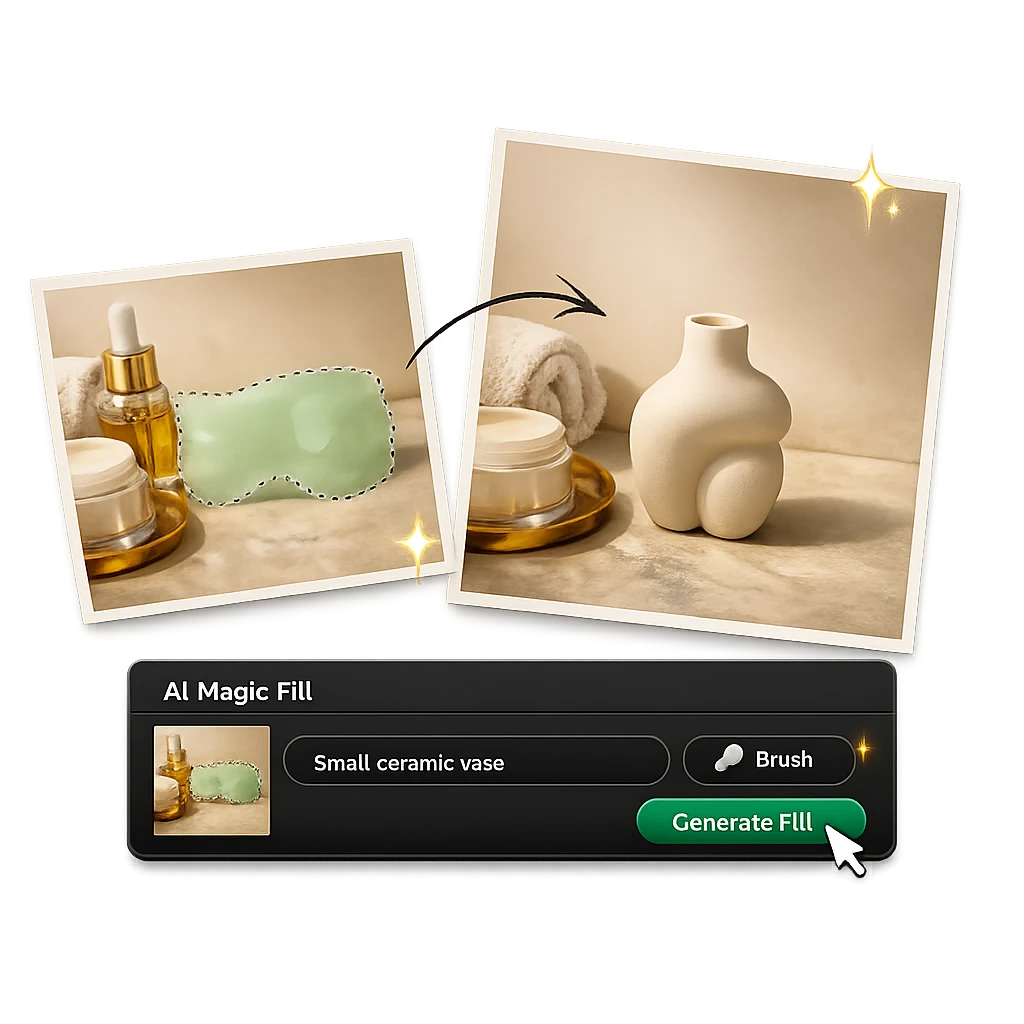
Select an object and describe what should appear instead.
Upload an image, mark the area to change, write one short instruction, and generate a seamless local edit without rebuilding the whole picture.
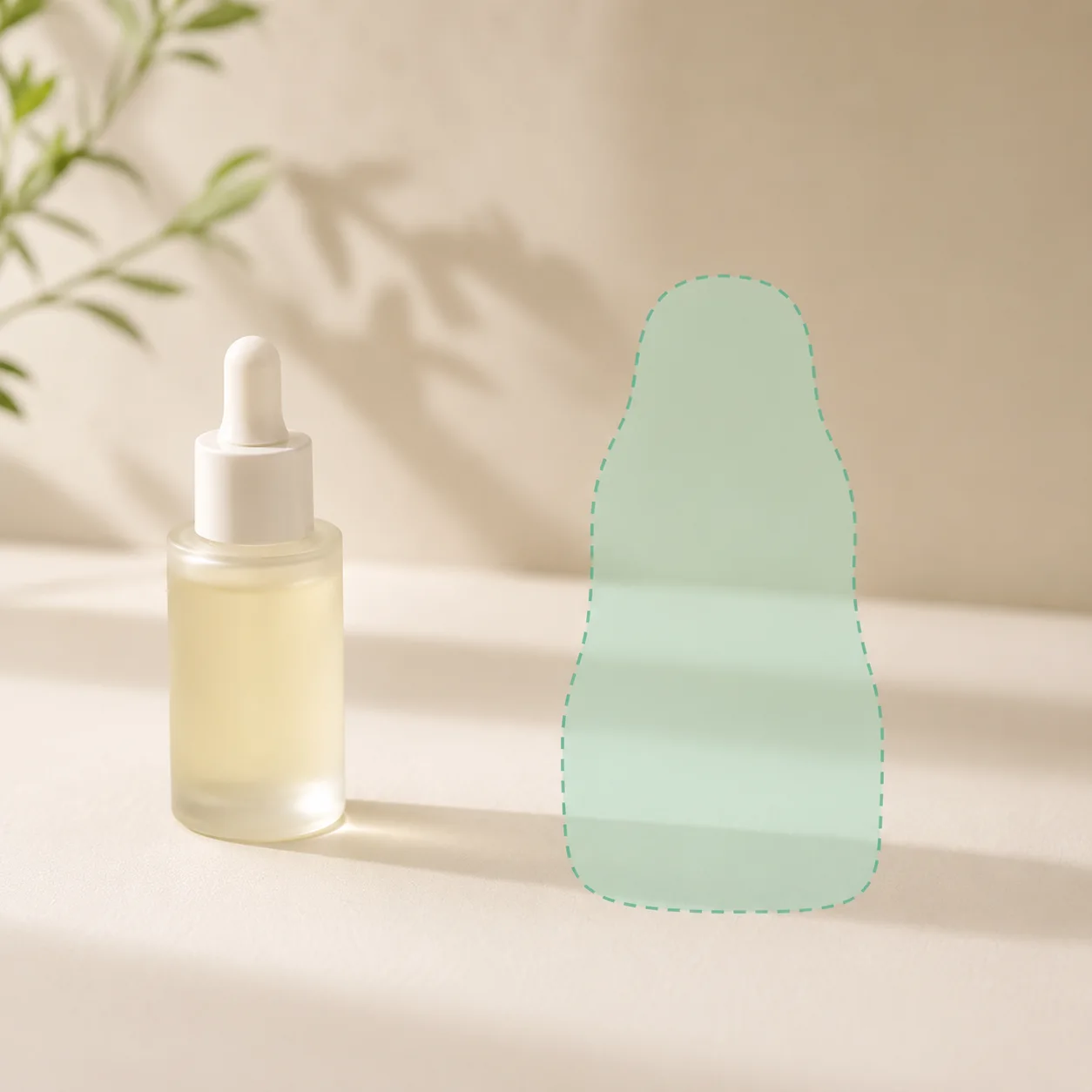
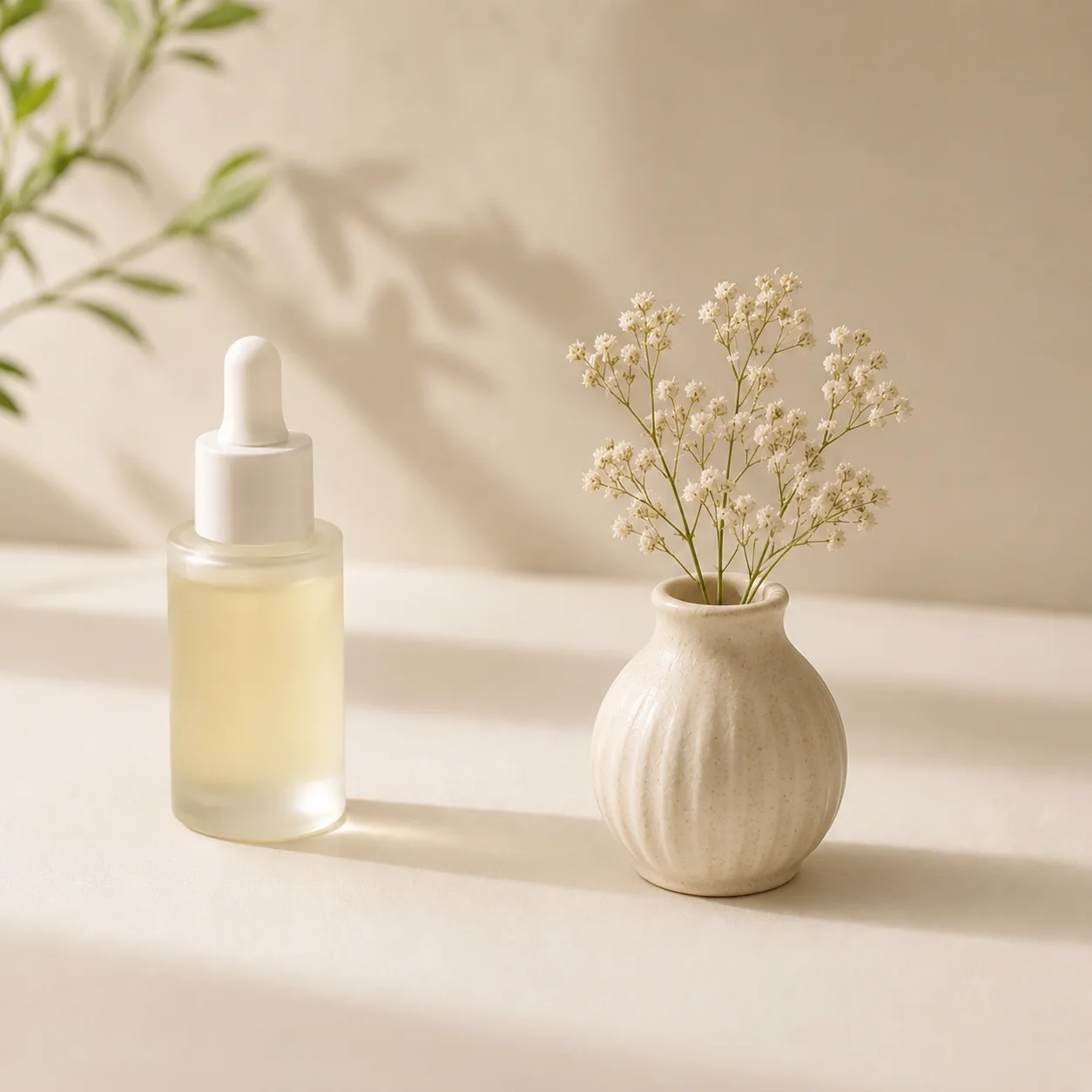
Product prop fill
Select an object and describe what should appear instead.
Erase a distraction and let nearby texture fill the space.
Insert small props, decor, or campaign details locally.
Patch missing areas, damaged corners, or awkward crops.
Visual edit modes
Magic Fill should feel like editing one specific area, not regenerating the whole picture. These examples show repair, insertion, and distraction removal as separate jobs.
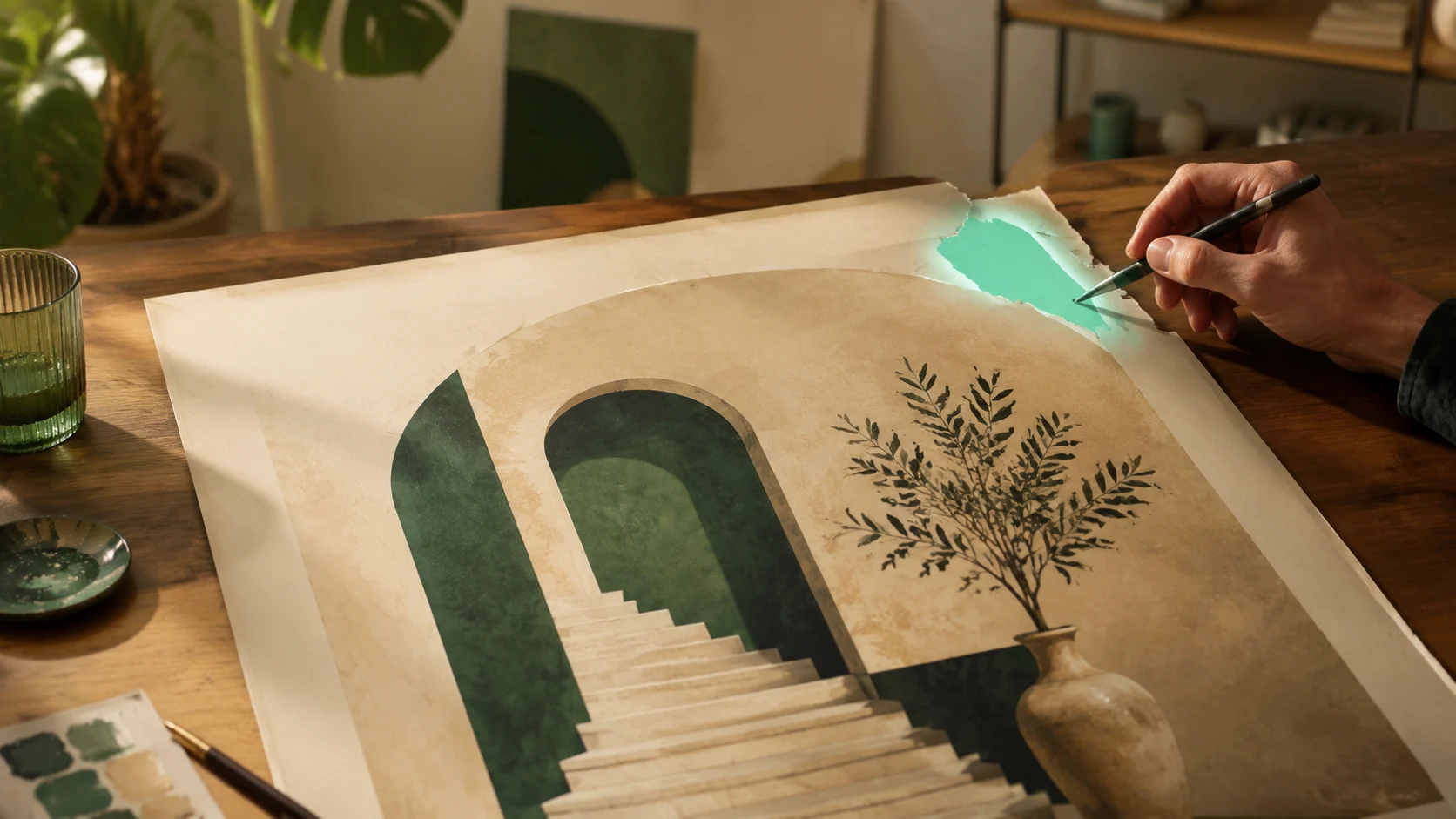
01 / local edit
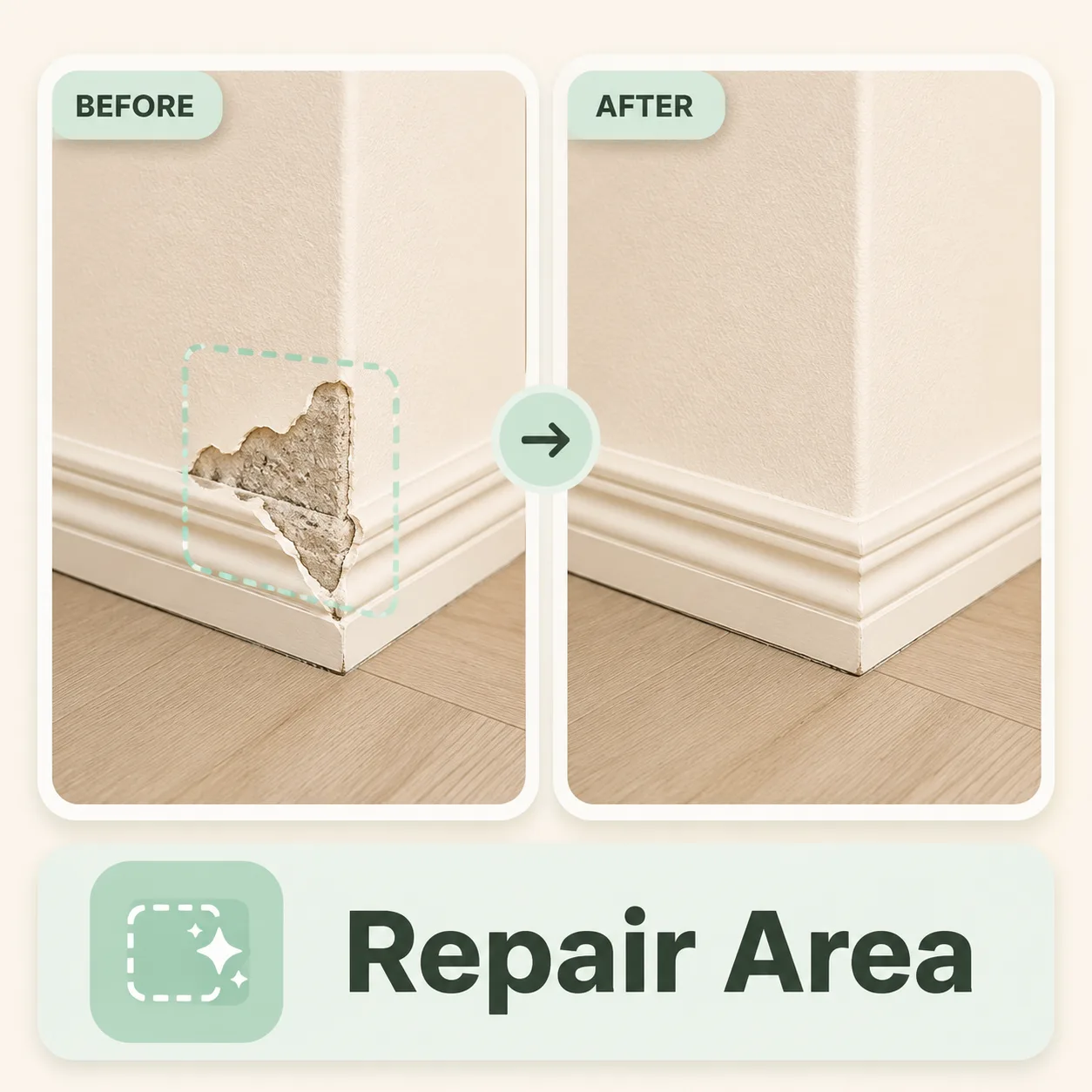
Use a brush mask to rebuild a damaged corner without touching the rest of the image.
Start for free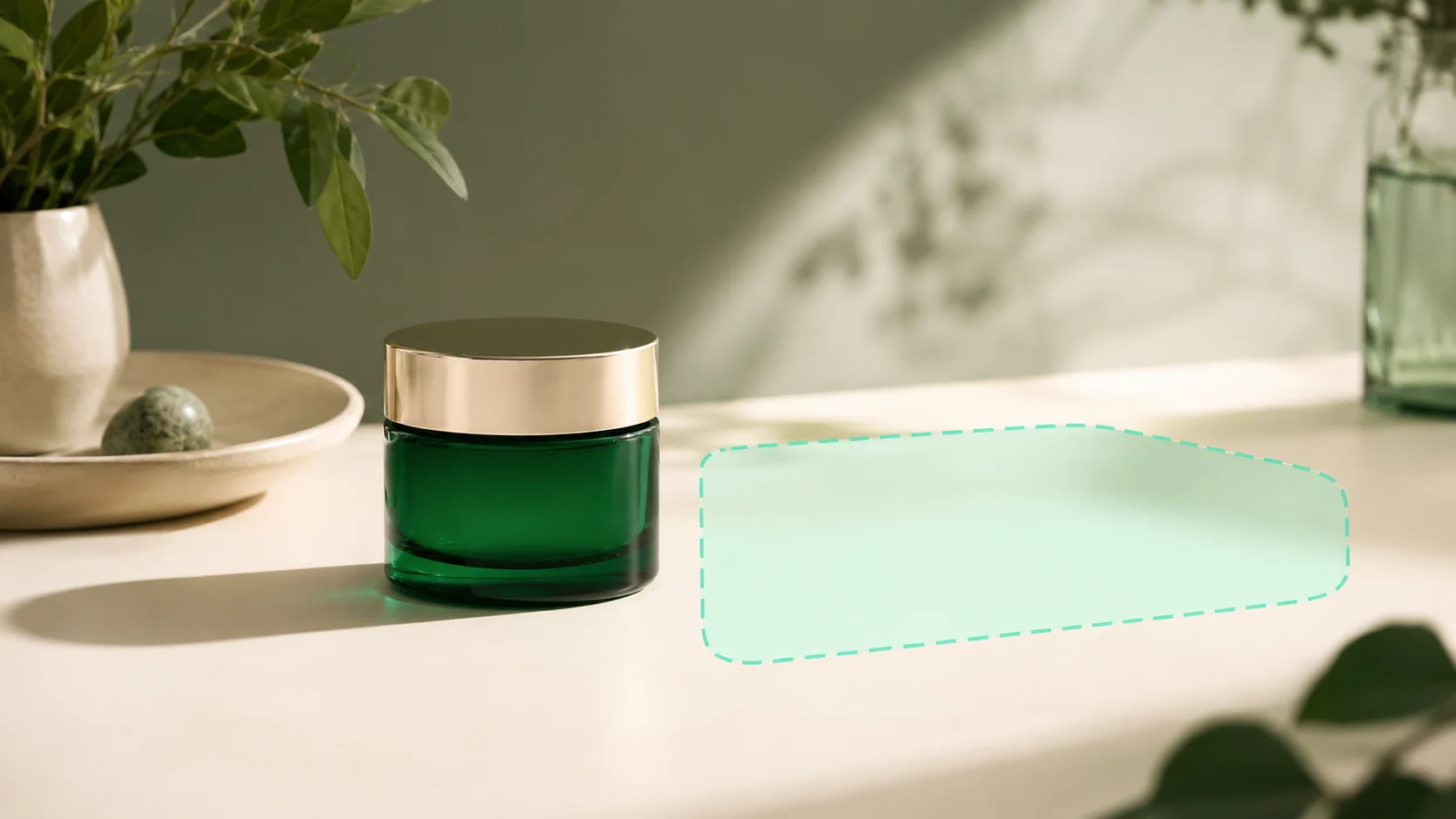
02 / local edit
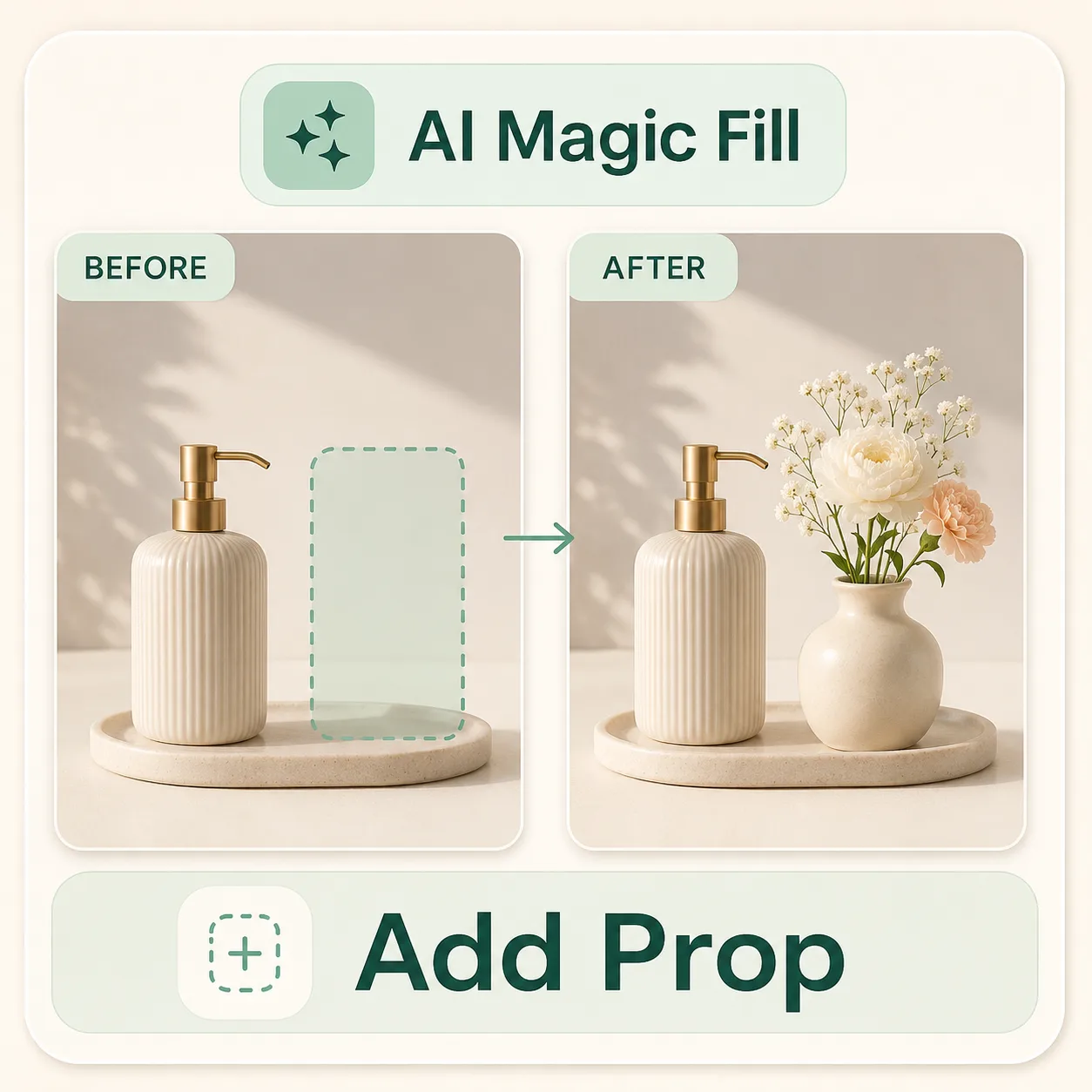
Add a small prop or product accent that follows the original light and perspective.
Start for free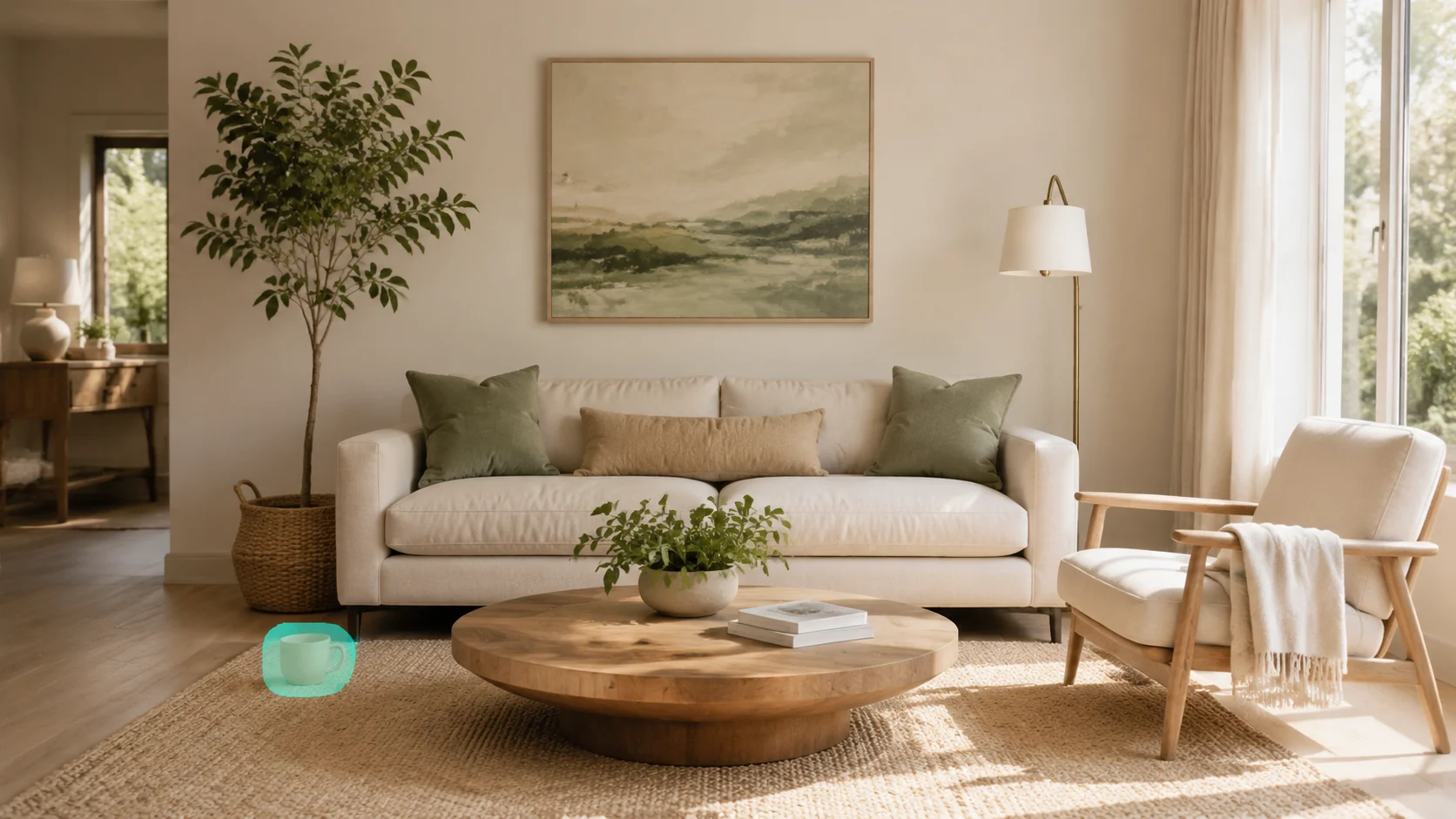
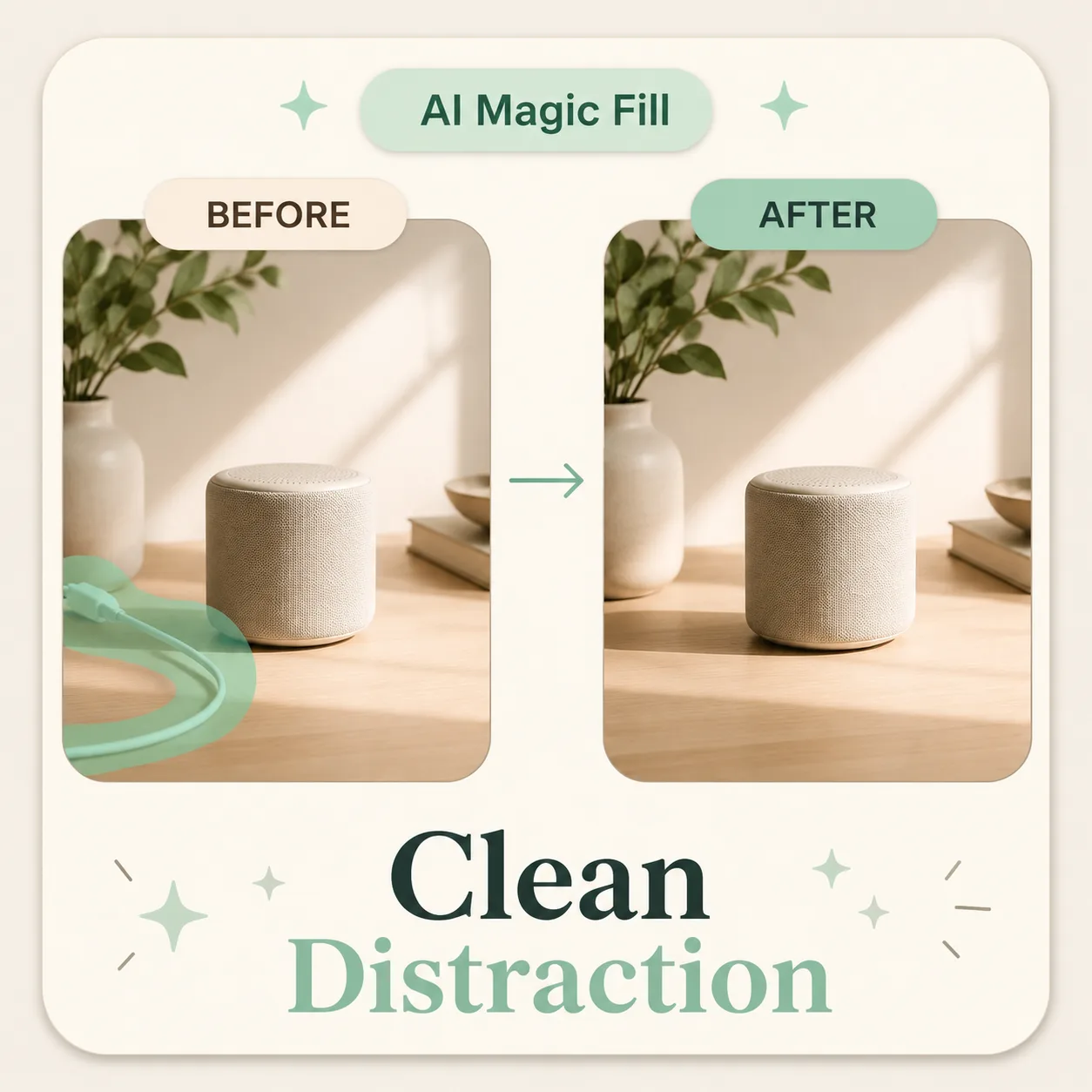
03 / local edit
Select the distracting object, then let the surrounding texture blend back naturally.
Start for freeEdit stories
Magic Fill cases are easier to understand as editing requests: mark a region, say what should happen there, and compare the blended result.
Before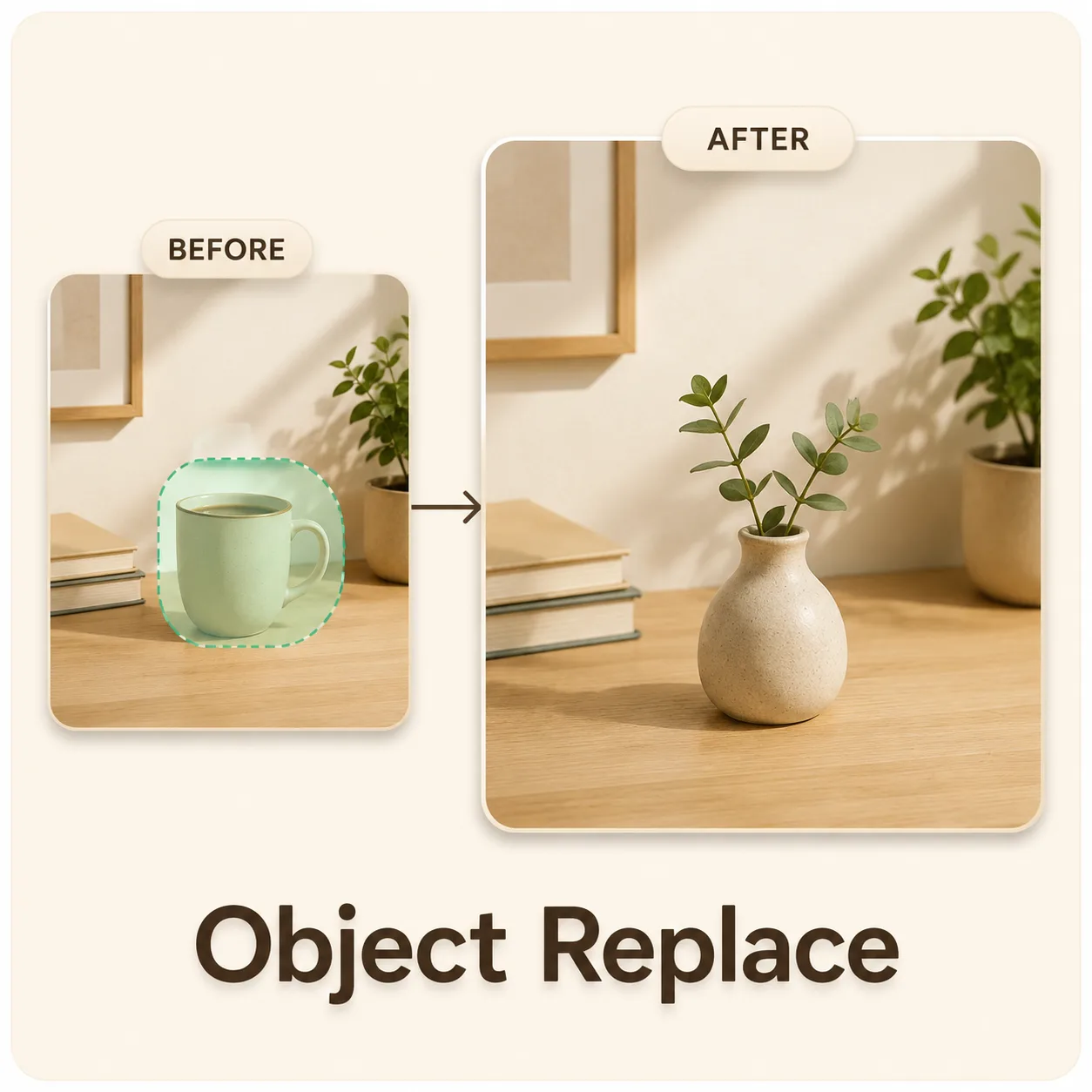 After
AfterPrompt
Swap one item while preserving the original scene and light.
 Result
Remove distraction
Clean visual noise without manually cloning the background.
 Result
Add a matching prop
Insert campaign details that match the photo direction.
 Result
Repair missing texture
Patch awkward crops, gaps, or damaged image areas locally.
Mask workflow
Keep the interaction focused: image, selected area, short prompt, generated result.
Upload a source image or start from the sample.
Brush over the area that should change.
Write one focused instruction for that area.
Generate and keep the edit that blends best.
Quality checklist
Mask slightly overlaps the object edge
Prompt describes only the selected area
Lighting direction matches the source image
Texture and shadow scale feel consistent
AI Magic Fill is an inpainting workflow for selected areas of an image. Instead of regenerating the whole picture, you mark a region and describe what should appear there.
Yes. Select the object or distraction, then use a prompt such as remove this cable or clean the background. The result works best when the surrounding texture is visible and consistent.
Yes. Magic Fill can insert props, decorations, product accents, or small scene details. Describe the object, lighting, material, and how it should sit in the scene.
Use a mask that slightly overlaps the surrounding area. Avoid masks that cut exactly on the object edge, and keep the prompt focused on the edit rather than the entire image.
The intended workflow changes only the selected area and nearby blend region. Large masks or broad prompts can create more visible changes, so start with a smaller selection.
Product photos, portraits, room scenes, social visuals, and clean lifestyle shots work well. Extremely blurry, very dark, or heavily compressed images may need a larger mask or a simpler prompt.