

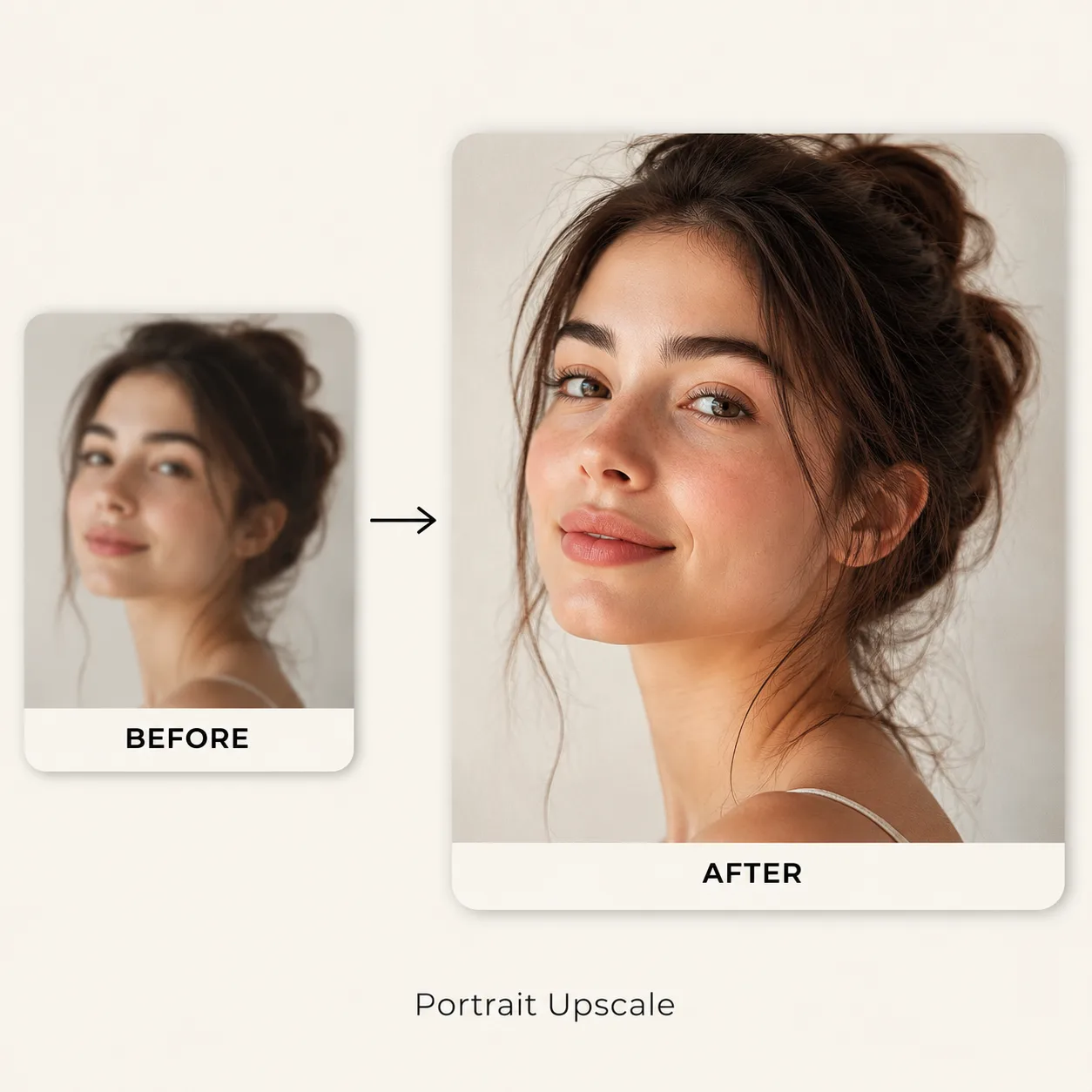
Portrait
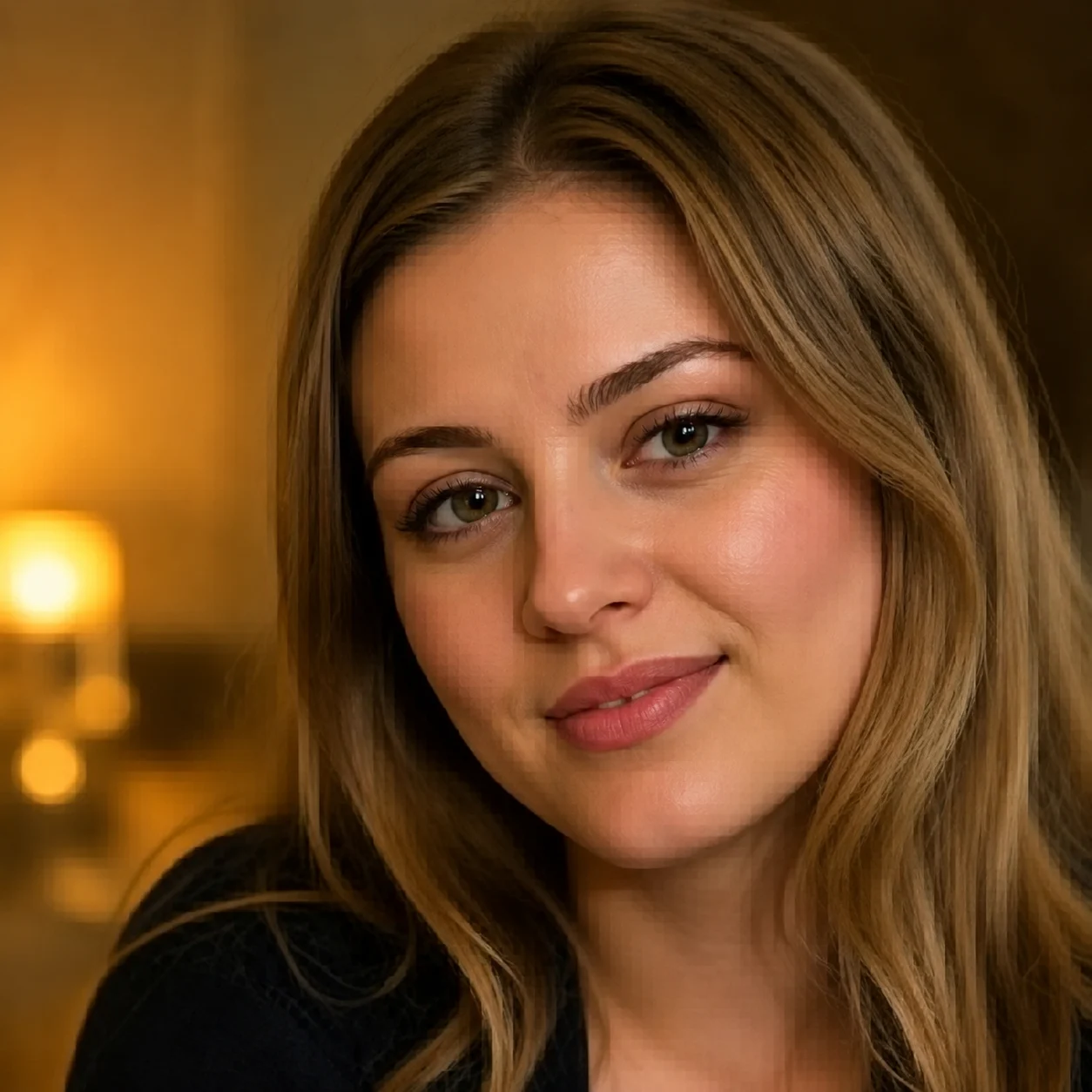
Soft face detail to cleaner edges
Upload a low-resolution image and enlarge it up to 2x or 4x with AI while preserving edges, textures, and visual details.
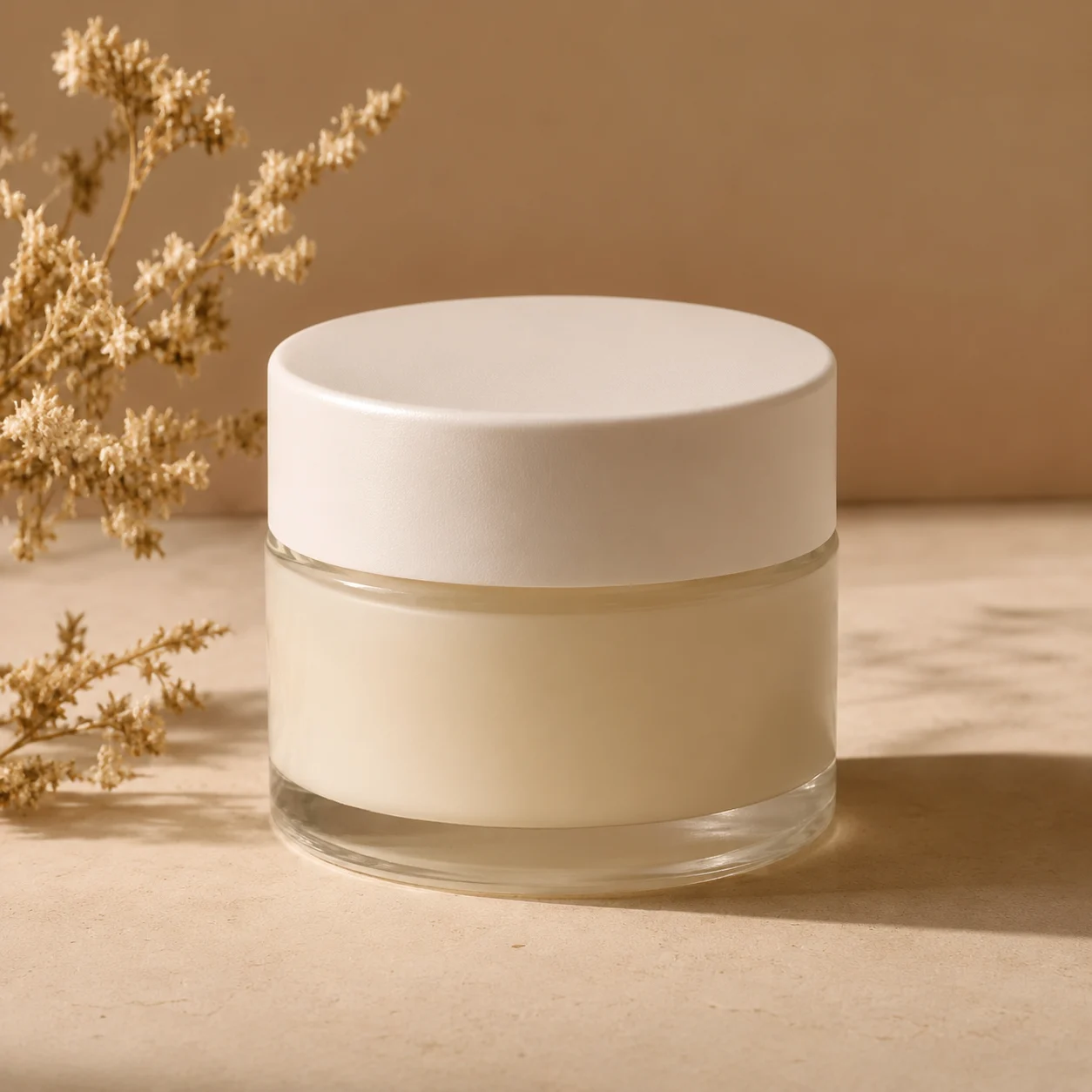
Product photo clarity
Soft face detail to cleaner edges
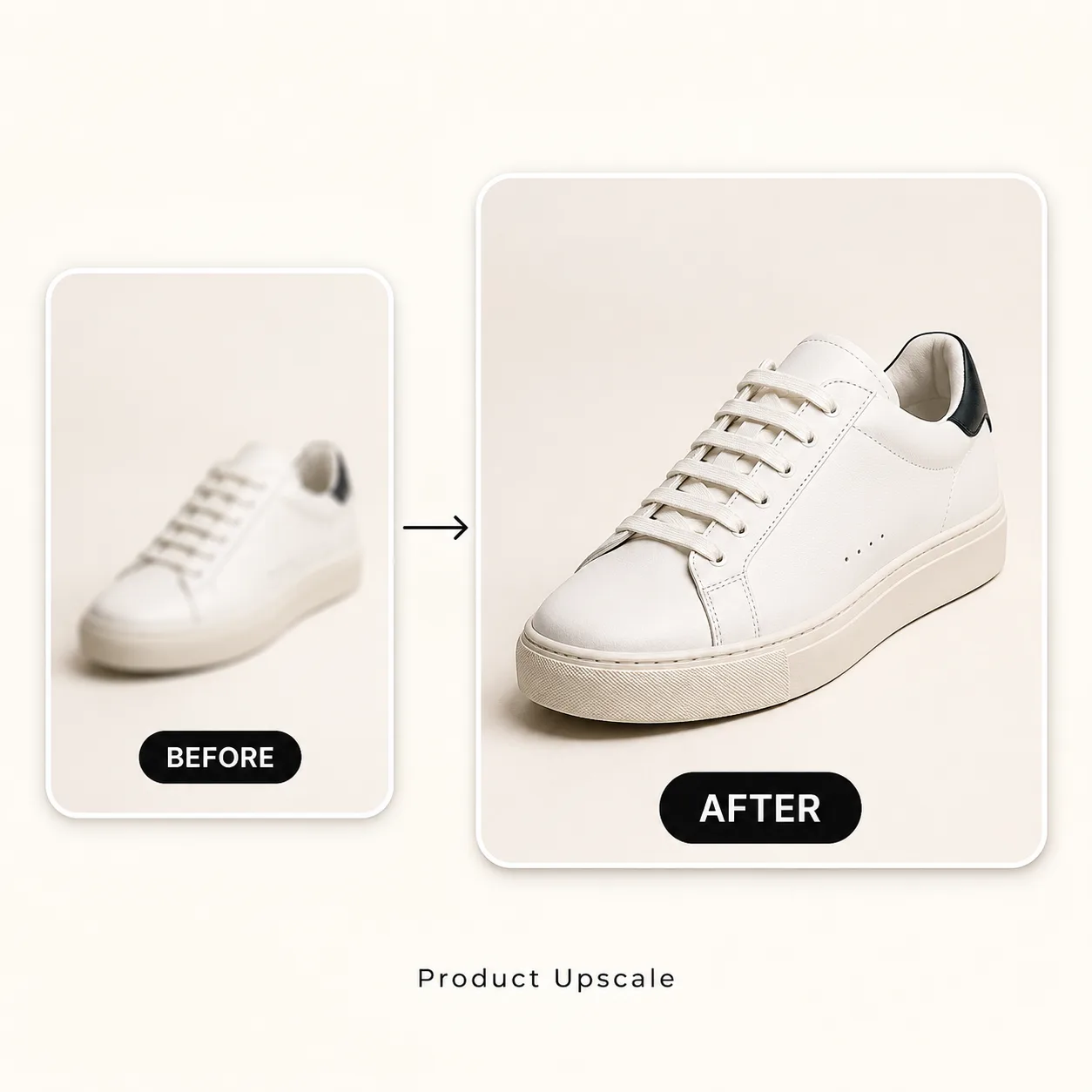
Small catalog image to sharper card
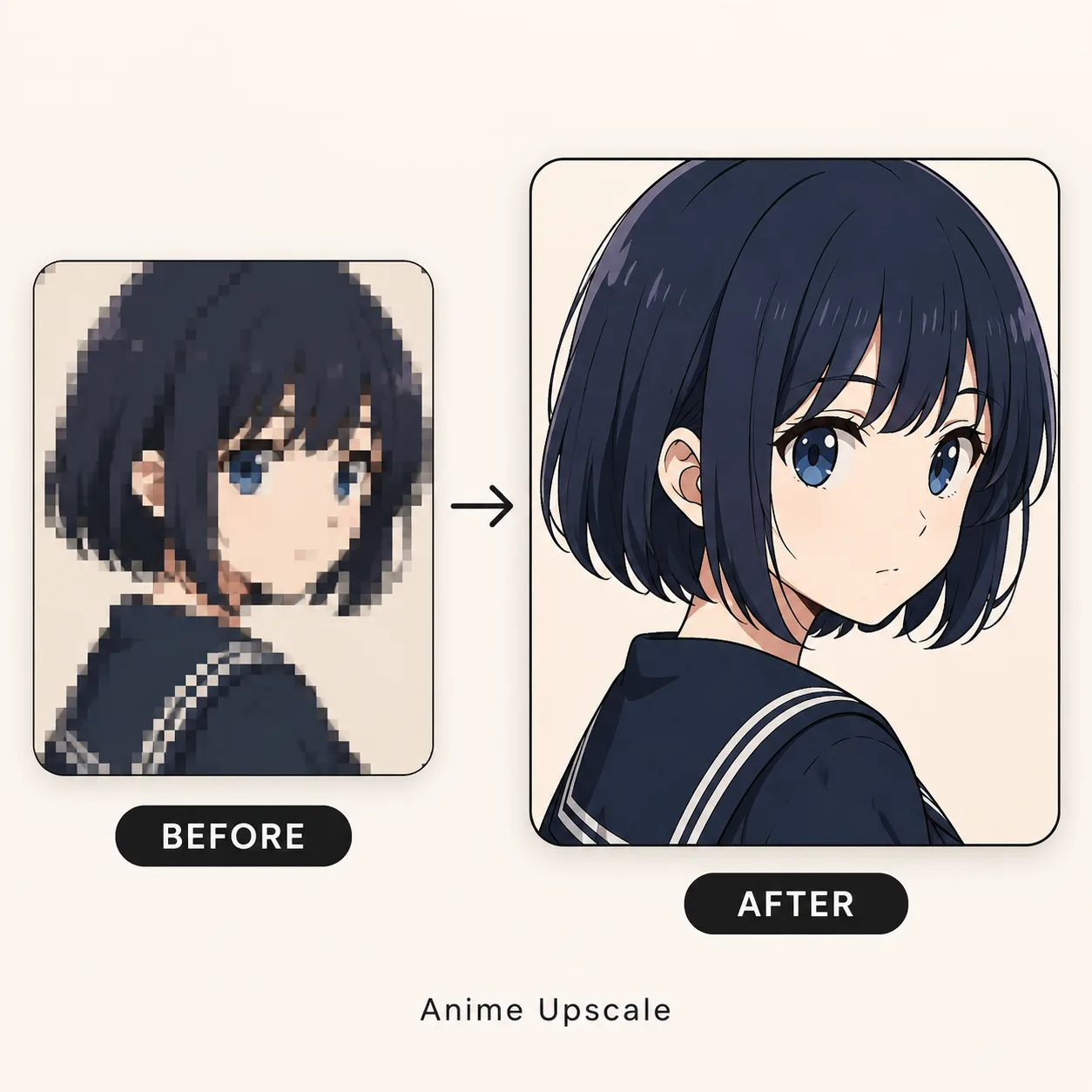
Low-res art to cleaner line work
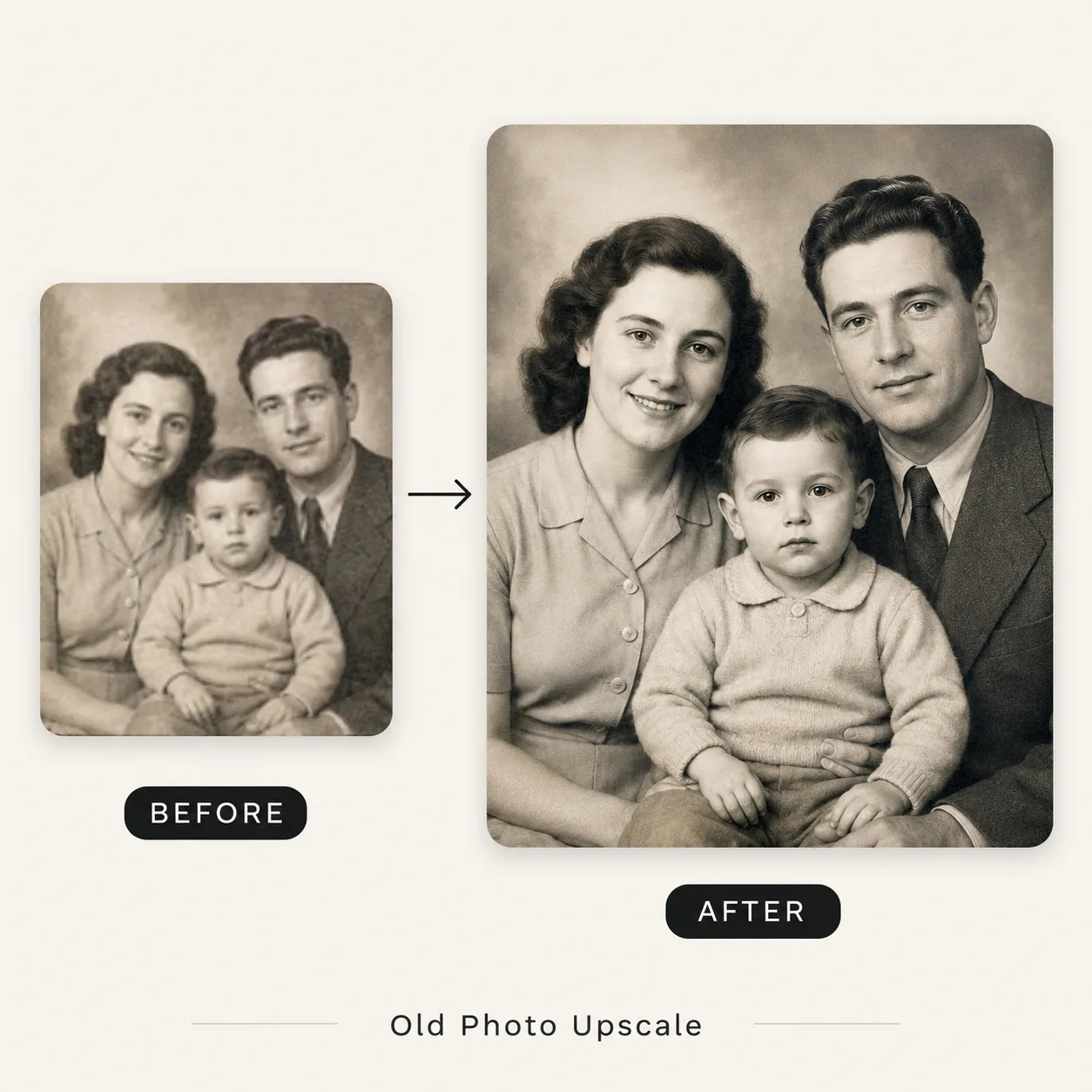
Compressed memory to usable print
Real upscale cases
Users want to know whether the tool keeps the same image while improving detail. These cases cover product photos, portraits, and illustrations.
BeforeAfter Before
 After
After Before
 After
AfterAI Image Upscaling
Improve image resolution, sharpness, and usable detail with AI instead of simply stretching pixels. It is not magic, but it is a better first pass than manual resizing for many everyday files.
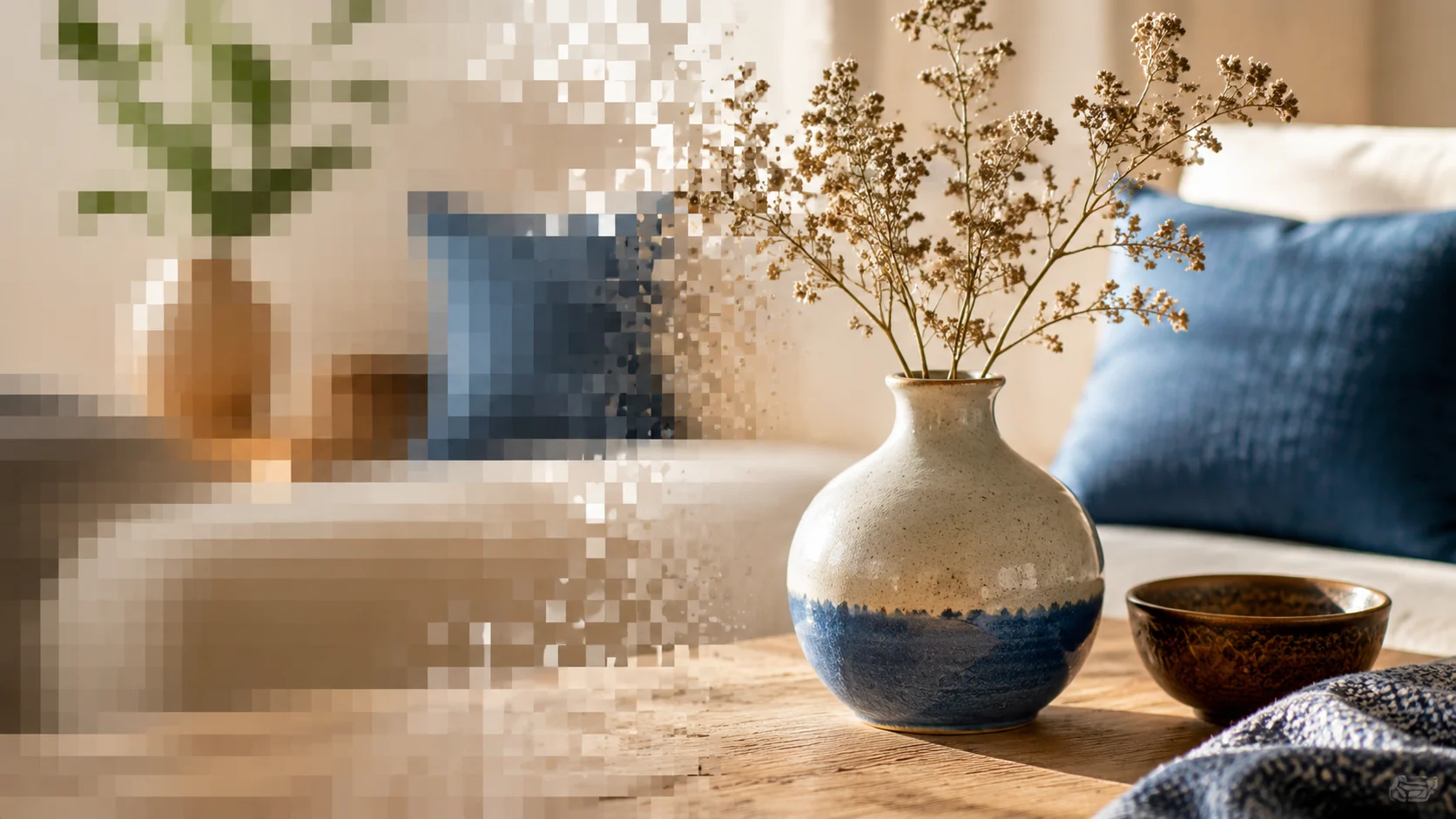
01 / clarity workflow
Traditional resize stretches pixels and often makes blur more obvious. AI image upscaling analyzes edges, subject structure, and texture so the larger image feels more usable.
Start for free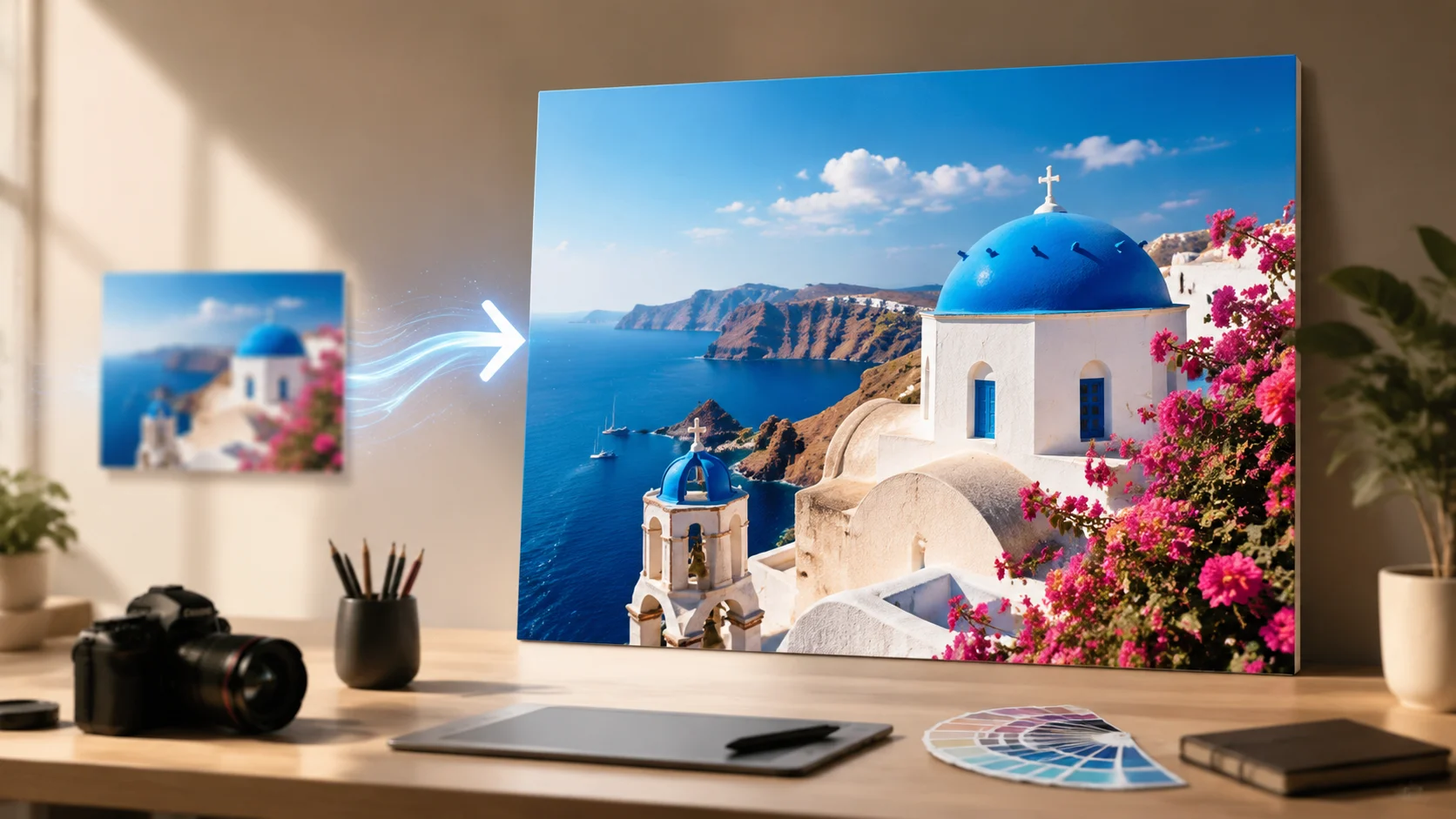
02 / clarity workflow
Use dedicated modes for portraits, product photos, anime art, screenshots, and general photography instead of applying one sharpening recipe to every file.
Start for free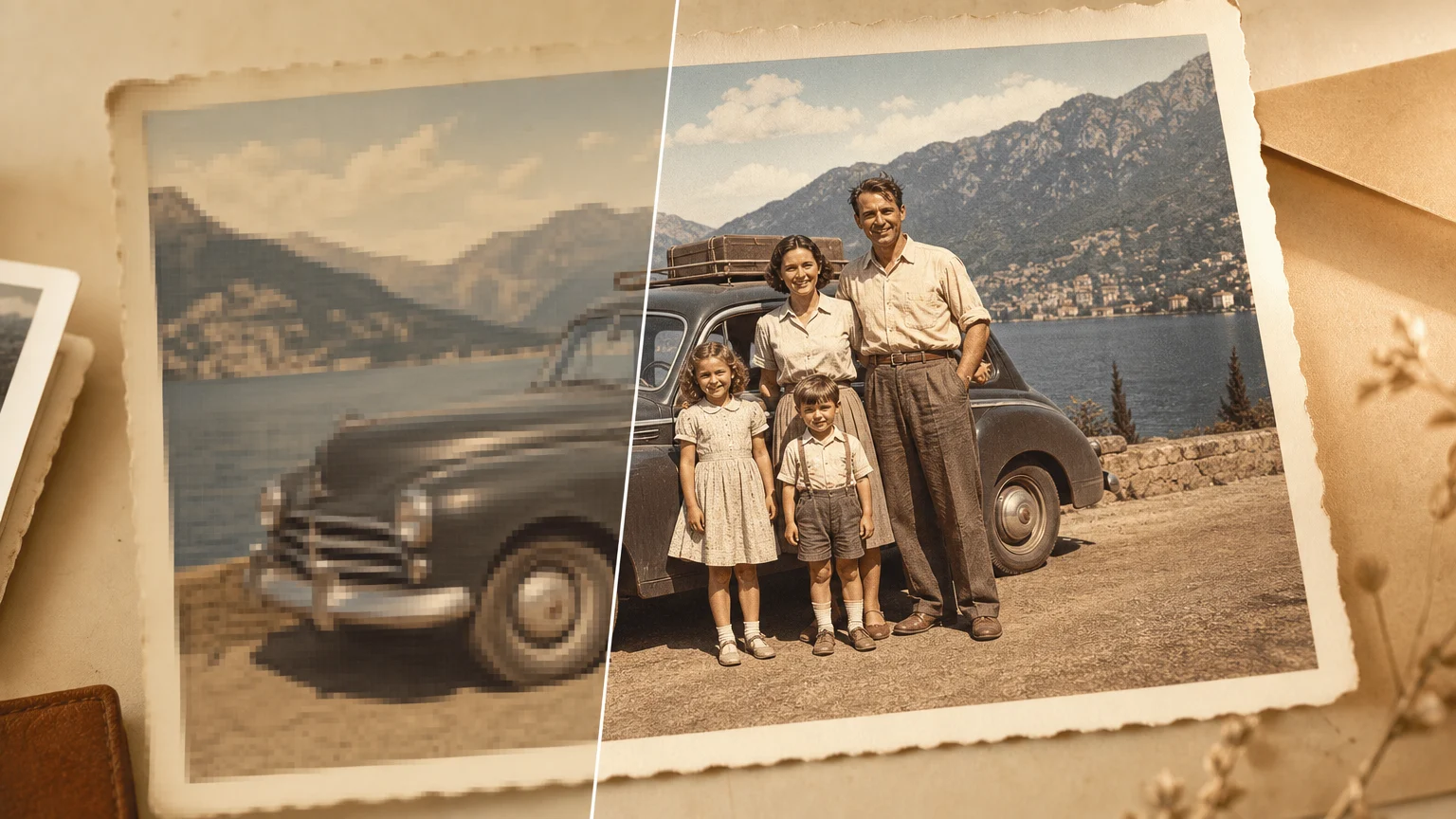
03 / clarity workflow
Export an upscaled image for websites, social media, ecommerce cards, presentations, or print drafts without opening Photoshop for a quick resize task.
Start for freeThe goal is practical quality: bigger files that look cleaner in real layouts, while being honest about cases where a tiny source image cannot be fully recovered.
Improve small, soft, or compressed source images when you need something that holds up in a larger layout.
Prepare product images, avatars, social covers, blog graphics, pitch decks, and lightweight print materials from imperfect source files.
Upload an image, choose 2x or 4x, compare the result, and download. Advanced controls stay folded until you need them.
How it works
The workflow stays short on purpose. Upload, choose a scale, and compare the output before downloading.
Choose a JPG, PNG, or WEBP image from your device. You can also paste an image from the clipboard.
2x is faster and usually more faithful. 4x is better for clean product images, print drafts, and high-resolution downloads.
Compare before and after with the slider, then download the high-resolution image in your preferred format.
Useful when the source is recognizable but too small, soft, or compressed for the final placement.
Useful when the source is recognizable but too small, soft, or compressed for the final placement.
Useful when the source is recognizable but too small, soft, or compressed for the final placement.
Useful when the source is recognizable but too small, soft, or compressed for the final placement.
Useful when the source is recognizable but too small, soft, or compressed for the final placement.
Useful when the source is recognizable but too small, soft, or compressed for the final placement.
Not in the physical sense. Raster images need new pixels when resolution increases. This AI image upscaler aims for visual clarity: it keeps the original look as much as possible while rebuilding edges, textures, and small details.
Use 2x when you want faster, more faithful results for web, profile images, and social posts. Use 4x for product photos, print drafts, or high-resolution downloads when the source file is reasonably clean.
You can upload JPG, JPEG, PNG, or WEBP images up to 20MB. PNG is a safer output for illustrations and screenshots, while JPG or WEBP can be smaller for photos and web publishing.
Sometimes, yes. AI upscaling may rebuild missing texture or sharpen soft edges, so tiny patterns can change slightly. If accuracy matters more than size, start with 2x and keep Preserve texture enabled.
Portrait mode can improve soft face detail and hair edges, but it cannot recover a face that is only a few pixels wide. Very blurry, heavily compressed, or motion-blurred portraits may need another generation.
Yes. Anime and illustration mode is tuned for cleaner lines and flat color regions. Text & Screenshot mode is better for UI captures, tutorial images, and images where readable text matters.
The source may be too compressed, too small, or already sharpened with artifacts. In that case, 4x can exaggerate noise. A practical fix is to try 2x, lower sharpening, and avoid uploading images exported from chat apps.
You can use results based on images you own or have permission to edit. Do not upload copyrighted product photos, portraits, or artwork unless you have the right to process and reuse them.
More focused tools for cleaning, sharpening, and preparing images.
Open in the image workspace
Open in the image workspace
Open in the image workspace
Open in the image workspace
Open in the image workspace
Open in the image workspace
Open in the image workspace
Open in the image workspace